#VCP #vSphere #Concept
Linux distribution based on PhotonOS. Management Appliance for ESXi hosts and other vSphere products.
Part of the vSphere suite.
## Services
- vSphere Authentication services
- vmdir
- VMware directory services for LDAP internal SSO
- vSphere Client
- HTML5 UI which can be accessed through web browser.
- PostgreSQL database
- database for vSPhere and Cloud hybrid services
- vSphere Lifecycle Manager
- centralized automated patch and version management
- vSphere Single Sign-on
- vSphere license services
- Certificate authority (VMCA)
- ESXi dump collector
- Collects ESXi memory dumps over the network when needed.
- vSphere Auto-deploy
- Allows deployment of stateless hosts.
## Deployment
possible over GUI or CLI with ISO file. Installation will proceed at a certain point to the webinterface.
deployment can be done in different sizes, depending on the size of the environment you need to manage
![[_media/vSphere - vCenter2024-07-30.png|800]]
![[_media/vSphere - vCenter2024-07-21.png|vSphere - vCenter2024-07-21.png]]
## Architecture
### Depreciated topologies
#### vCenter Server on Windows
vCenter server on Windows is no longer available since vSphere 7 only VCSA on PhotonOS is supported moving forward. Can be converted via the installation assistant during the vCenter 7 installation.
Migration process from Windows/Windows + PSC to Appliance:
1. deploy new vCenter appliance
2. Mount VCSA installer on Windows VCSA
3. Start VMware migration assistant
4. After unregistration from SSO the PSC can be decomissioned
5. leave Migration assistant open until upgrade/migration is completed
#### external Platform Services Controller (PSC)
6.7/6.5 and earlier you were able to have an external Platform Service Controller that was running as a sperate VM. The external Platform Service Controller was recommended for larger deployments or multi-sites deployments. External PSC can be migrated with a tool called vCenter server converge tool or during the vCenter upgrade process running on the vCenter GUI installer.
Provided services by an external Platform Services Controller:
- SSO
- license
- certificates
- directory services
![[_media/vSphere - vCenter-2024-05-14.png]]
Since 7.0 this is always combined into one appliance as an embedded service.
## vSphere Single Sign-on (SSO)
vCenters single sign on is part of the authentication services component of vCenter Server.
It provides secure authentication services to vSphere software components using secure token exchange meachanism.
A token is issued to the component, allowing for this component to authenticate multiple times against different components of vSphere instead of authenticating each time a component is requested.
vSpheres default SSO domain is vSphere.local, if changed it should never be named after an already existing domain that is used anywhere else in the organization.
vSphere SSO can authenticate either against the vSphere.local domain or against external directory sources.
### Components
- Security Token Service(STS)
- issues SAML tokens representing a user
- Administration Server
- allows for admins to create users/groups
- vCneter Lookup service
- VMware directory service (vmdir)
- Identity Management
- handles identity managament and STS requests
### Configuration
SSO is configured during Stage 2 of a vCenter installation. You can either create a new vSphere SSO domain or join an existing one.
If joining an existing one is chosen, the following requirements/parameters must be met/chosen:
- vCenter SSO FQDN or IP you want to join
- HTTPS port to communicate with the vCenter Server SSO
- SSO domain name
- password for the SSO admin acount
If you want to join an existing SSO domain after installation, vCeneter 6.7 U1 is required and is done via CLI.
### Users/Groups
The default vSphere SSO domain comes preconfigured with users and groups.
[email protected] is always created during the SSO setup.
Users/Groups should not be modified, unless explicitly told so by support or a kb.
## Performance overview
can be done on multiple levels, VM, Host, Cluster.
## Backup & Restore
vCenter can be backed up via a file-based backup on an external storage.
### Requirements
- Supported protocols
- FTP
- FTPS
- HTTP
- HTTPS
- SFTP
- NFS
- SMB
- Write permissions on Storage
- Explicit mode is supported for FTPS
- HTTP/HTTPs webDAV is required on the backup web server
- HTTP proxy is only supported via FTP,FTPS,HTTP and HTTPS
### Scope
The following parts are restored completely or with restrictions
- VM resource settings
- Resource pools
- Cluster host membership
- DRS configuration and rules
- Storage DRS
- Distributed Power Management
- vCenter sServer might force the host to exit standby upon restore
- Distributed Switch
- changes may be lost, it is advised to export the distributed switch configuration before restoring the backup
- Content libraries
- If any items or librariers are deleted after the backup, you cannot restore the items via restore.
- any newly created items can be accessed after the restore (warning pops up)
- Newly created libraries have no record in the backup, must be cleaned manually.
- VM registration
- might be orphaned VMs which need to be added/removed and registered again.
- Enhanced linked mode
- at least one vCenter server muste be running with the VMware Directory service database.
- Otherwise it cannot be restored.
- vSphere HA
- Might cause it to rollback to older HA states
- Protection states might be not updated
- VMs could failover to hosts not being managed
- vCenter HA
- cannot be restored using file based backup, only normal vCenter is restored, HA needs to be setup again.
## Multihoming
ability to configure vCenter with multiple vNICs to make it accessible from multiple networks without routing. Is needed for vCenter HA for example.
- maximum of 4 vNICs
### Setup
1. Add NICs to VCSA VM
2. Configure NICS inside VC VAMI
1. 1st NIC will always be configured for VC HA
## PNID
Identifier of the vCenter itself. It usually is the FQDN of vCenter, if it was created with an IP it will be the IP of vCenter.
When the FQDN changes, the PNID changes aswell, all custom certificates need to be regenerated, VCHA needs to be reconfigured and AD needs to be rejoined.
## Server profile
similar to ESXi host Profiles. Server profile can be exported as json and imported into other VCSA's.
It contains:
- Backups
- Patching
- Syslog
- Mail server
- NTP
- DNS
- Proxy
- Firewall
- Global Permissions
- Roles
- Password policies
## Enhanced linked mode
Allows for the managament of multiple vCenter server instances through a single vCenter.
The instances are connected through the same SSO.
### Requirements/limitations
- Up to 15 vCenter systems can be linked together in a single SSO domain
- vCenter instances must be in the same SSO
## Hybrid linked mode
Hybrid linked mode allows you to link your cloud vCenter instance with an on-premise vCenter.
All of the vCenter instances are linked to your cloud SDDC.
vCenter enhanced linked mode is supported aswell.
### Requirements
- connection between SDDC and on-premise
- vCenter FQDN must resolve to a private IP
- NTP servers must be synchronized
- skew of up to ten minutes is allowed
- maximum latency 100ms RTT
- SSO must be configured
- supports embedded or external platform services controller
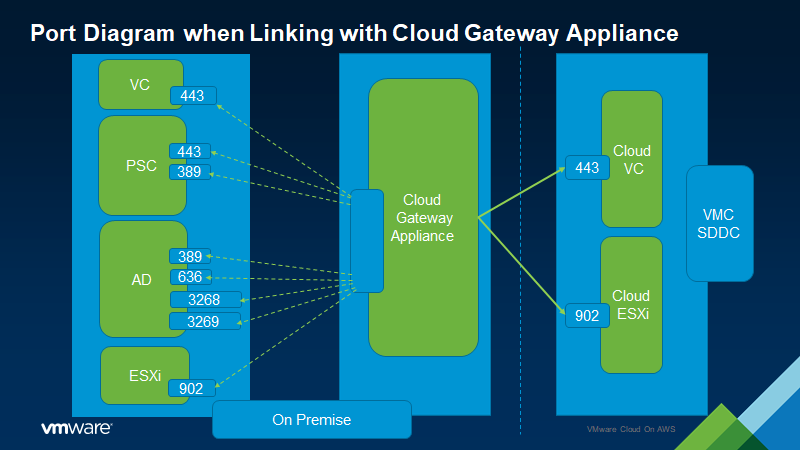
#### for setup with VMware cloud gateway
- vSphere 6.5 or later
- VCG and vCenter on-prem must be able to reach over your network
[](https://docs.vmware.com/en/VMware-Cloud-on-AWS/services/com.vmware.vmc-aws-operations/images/GUID-EF38E474-D16E-43FC-A5A1-3DF7F217F83B-low.png)
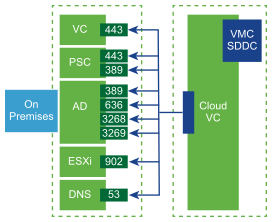
#### for setup with linking from the cloud SDDC
- vSphere 6.0 U3 patch c and later
- vSphere 6.5 patch d and later
- login credentials for on-prem SSO domain
- resolve FQDN for identity source and on-prem systems
- if Enhanced linked mode is used, SDDC must have a connection to all linked vCenters
- Network connectivity validator can be used (https://docs.vmware.com/en/VMware-Cloud-on-AWS/services/com.vmware.vmc-aws-operations/GUID-C6A392D6-D9AB-4847-B540-86160D112F08.html#GUID-C6A392D6-D9AB-4847-B540-86160D112F08)
[](https://docs.vmware.com/en/VMware-Cloud-on-AWS/services/com.vmware.vmc-aws-operations/images/GUID-5A50D278-C32F-47C6-A860-13A768F091C4-high.png)
### Features
- view/manage inventories of on premise and cloud datacenters from a single client.
- migrate workloads between on-premises and cloud SDDC
- Share tags/categories
### Installation
- install VMware Cloud Gateway and link from your on-premises DC to your cloud SDDC.
- SSO users and groups are mapped from your on-premises environment to the SDDC
- or you can link your cloud SDDC to your on-premises vCenter
- must add an identity source to the SDDC LDAP domain
## vCenter High availability (vCenter HA)
vCenter HA offers high availability for your vCenter managament instance.
### Architecture
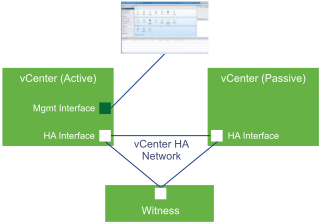
vCenter HA consists of 3 vCenter nodes that make up an active/passive failover architecture.
It consists of 3 node types:
- active
- runs the active vCenter instance
- uses the public IP for the management interface
- uses HA network for replication of data to passive node
- uses HA network to communicate to the witness
- passive
- initially a clone of the active node
- constantly receives updates from active node over HA network
- automatically takes over the role of the active node incase of a failure
- witness
- lightweight clone of the active node
- provides a quorum to protect against a split-brain scenario
each of the nodes have to be hosted on an ESXi host.
[](https://docs.vmware.com/en/VMware-vSphere/8.0/vsphere-availability/images/GUID-6CFBA1B3-43C8-4D82-9D4F-BB2B7C894DC9-high.png)
### Requirements
- vCenter Small required, vCPU/16GB RAM
- ESXi 5.5 or later
- vCenter 6.5 or later
- at least 3 ESXi hosts are highly recommended, otherwise there is no full HA
- VMFS, NFS or vSAN is supported
- space for all 3 nodes
- latency between all nodes must be under 10ms in a seperate subnet
- vCenter HA network must be on different subnet than the management network
- only a single, standardlicense is required for vCenter HA
### Setup (automatic)
You may use the vCenter HA wizard inside the vSphere client of an installed vCenter instance to setup vCenter HA.
The wizard automatically creates the passive and witness nodes with the provided configuration
1. Deploy the vCenter instance regulalry or use an existing vCenter instance
1. the deployed vCenter instance will become the active node
2. user adds a second port group for vCenter HA traffic on ESXi host
3. supply the IP addresses, target ESXi hosts and datastore to the wizard
4. Wizard clones the active node and creates the passive node with the same settings
5. wizard clones the active node again and creates light weight witness node
6. wizard sets up the vCenter HA network on which the three nodes communicate
### Setup (manual)
1. Deploy the vCenter instance regulalry or use an existing vCenter instance
1. the deployed vCenter instance will become the active node
2. user adds a second port group for vCenter HA traffic on ESXi host
3. user adds a second NIC on the active node
4. start vCenter HA configuration, check the manual box
5. user creates two clones of the vCenter server
6. wizard sets up the vCenter HA network
### Restore
Backup operation only backs up the primary vCenter server instance. Before restoring a vCenter HA cluster you must power off the active, passive and witness node.
The restore will restore the vCenter server without HA, the cluster needs to be reconstructed.
## Vimtop
Is a tool similar to esxtop to monitor the local resource usages of services running on vCenter.
It can be accessed on the local shell or per SSH.
**command options**
|Option|Description|
|---|---|
|-h|Prints help for the vimtop command-line options.|
|-v|Prints the vimtop version number.|
|-c filename|Loads a user-defined vimtop configuration file. If the -c option is not used, the default configuration file is /root/vimtop/vimtop.xml. <br><br>You can create your own configuration file, specifying a different filename and path by using the W single-key interactive command.|
|-n number|Sets the number of performed iterations before the vimtop exits interactive mode. vimtop updates the display number number of times and exits. The default value is 10000.|
|-p / -d seconds|Sets the update period in seconds.|
**Interactive Mode Single-Key Commands**
| Key Names | Description |
| ------------------ | -------------------------------------------------------------------------------------------------------------------------------------------------------------------------------------------------------------------------------------------------------------- |
| h | Show a help menu for the current panel, giving a brief summary of commands, and the status of secure mode. |
| i | Show or hide the top line view of the overview panel of the vimtop plug-in. |
| t | Show or hide the Tasks section, which displays information in the overview panel about the tasks currently running on the vCenter Server instance. |
| m | Show or hide the Memory section in the overview panel. |
| f | Show or hide the CPU section which displays information in the overview panel about all available CPUs. |
| g | Show or hide the CPUs section which displays information in the overview panel about the top 4 physical CPUs. |
| spacebar | Immediately refreshes the current pane. |
| p | Pause the displayed information about the services resource use in the current panels. |
| r | Refresh the displayed information about the services resource use in the current panels. |
| s | Set refresh period. |
| q | Exit the interactive mode of the vimtop plug-in. |
| k | Displays the Disks view of the main panel. |
| o | Switch the main panel to Network view. |
| Esc | Clear selection or return to the Processes view of the main panel. |
| Enter | Select a service to view additional details. |
| n | Show or hide names of the headers in the main panel. |
| u | Show or hide the measurement units in the headers in the main panel. |
| left, right arrows | Select columns. |
| up, down arrows | Select rows. |
| <,> | Move a selected column. |
| Delete | Remove selected column. |
| c | Add a column to the current view of the main panel. Use spacebar to add or remove columns from the displayed list. |
| a | Sort the selected column in ascending order. |
| d | Sort the selected column in descending order. |
| z | Clear the sort order for all columns. |
| l | Set width for the selected column. |
| x | Return the column widths to their default values. |
| + | Expand selected item. |
| - | Collapse selected item. |
| w | Write the current setup to a vimtop configuration file. The default file name is the one specified by -c option, or /root/vimtop/vimtop.xml if the -c option is not used. You can also specify a different file name on the prompt generated by the w command. |
## 🔗Resources
### vCenter documentation
- [VMware vSphere Documentation](https://docs.vmware.com/en/VMware-vSphere/index.html)
### Hybrid linked mode
- https://docs.vmware.com/en/VMware-Cloud-on-AWS/services/com.vmware.vmc-aws-operations/GUID-BE75F0F1-2864-4926-97FE-37E635471C43.html
#### Connectivity validator
- https://docs.vmware.com/en/VMware-Cloud-on-AWS/services/com.vmware.vmc-aws-operations/GUID-BE75F0F1-2864-4926-97FE-37E635471C43.html